
Introduction
Restarting your Vizio TV can effectively resolve common issues like freezing, audio-sync problems, or connectivity issues. Whether you’re facing unresponsive apps or slow operations, a reboot often solves these challenges efficiently. Many Vizio TV owners are unaware of the multiple restart options available, and understanding these can significantly enhance your viewing experience.
Regularly restarting your TV helps maintain its performance, similar to rebooting a computer to clear temporary glitches. This guide provides a clear understanding of the different methods to restart your Vizio TV, ensuring you’re equipped to apply these techniques when needed.
Understanding Restart Options
Knowing which restart option best suits your situation is crucial. Vizio TVs offer several rebooting methods, including using the remote control, power cycling, and navigating through the on-screen menu. Each method has specific benefits and is appropriate for various scenarios. Let’s explore these methods to help you choose the right approach.
Understanding these methods helps you select the most efficient solution for any given problem. The wrong choice might not fully address issues and could sometimes complicate the situation.
Method 1: Using the Remote Control
You can easily restart your Vizio TV using the remote control with the following steps:
1. Ensure your remote has functioning batteries.
2. Point the remote at your TV.
3. Press the ‘Menu’ button.
4. Navigate using the arrow keys to the ‘System’ or ‘Settings’ menu.
5. Select ‘Power’ or ‘Reset & Admin,’ depending on your model.
6. Choose ‘Soft Power Cycle’ and confirm by pressing ‘OK.
This method is straightforward and often the first step for resolving minor issues. Restarting using the remote control is safe and doesn’t affect your TV’s settings or data.
Method 2: Power Cycling the TV
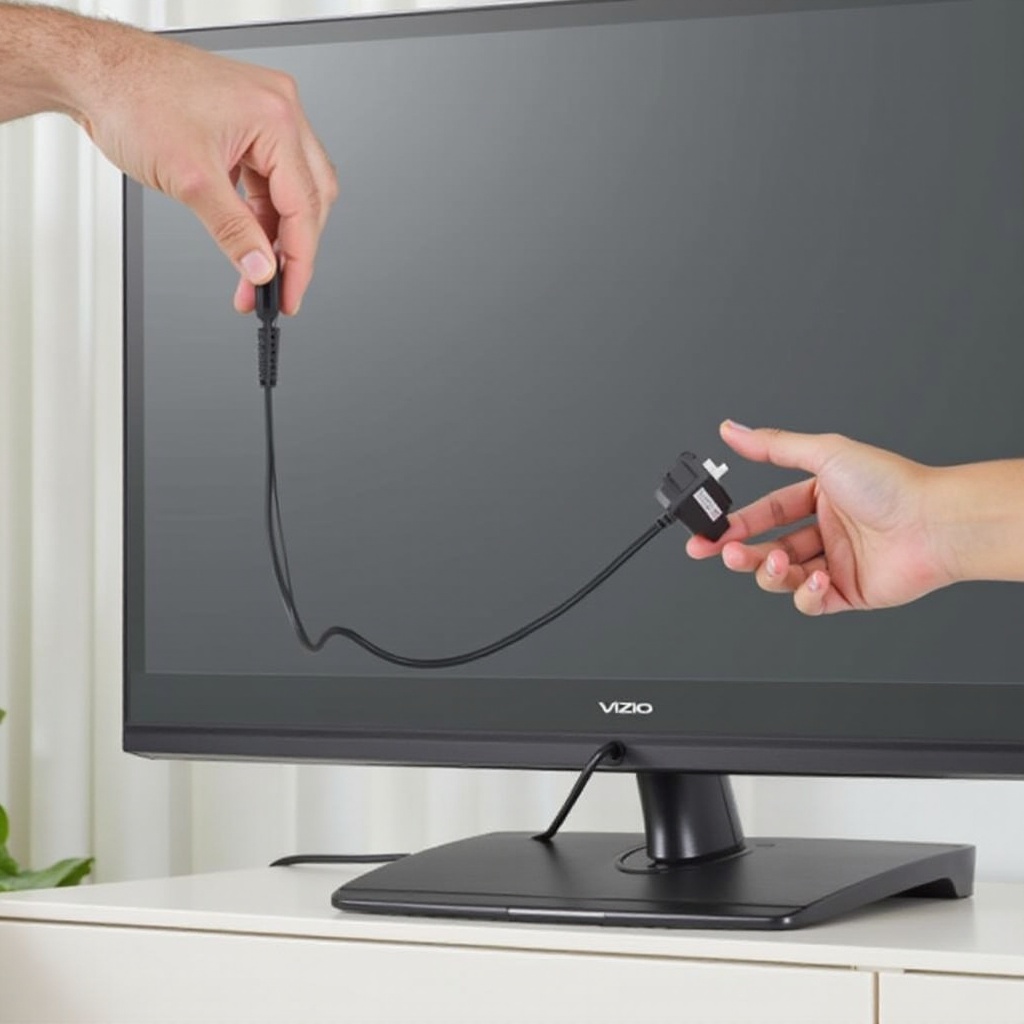
If a simple restart doesn’t work, a more in-depth method involves physically disconnecting your TV from the power source. Follow these steps to power cycle your Vizio TV:
1. Turn off the TV using the remote or power button.
2. Unplug the TV’s power cord from the outlet.
3. Wait for at least 60 seconds.
4. Replug the TV into the outlet.
5. Turn the TV back on using the remote control or power button.
Power cycling usually solves issues unresolved by a soft reset, such as persistent lags or failures in responding to the remote. It’s beneficial when menu access isn’t possible, eliminating the need for system navigation.
Method 3: On-Screen Menu Restart
If previous methods are unsuccessful or your TV supports enhanced features, use the on-screen menu for a controlled reset:
1. Access the menu by pressing the ‘Menu’ button on your remote.
2. Navigate to ‘System,’ then select ‘Reset & Admin.
3. Choose ‘Soft Reset’ or ‘Restart TV’ and confirm with ‘OK.
This method is efficient for troubleshooting via menu access and ensures no interruptions during updates or installations happening in the background. Mastering these restart techniques will significantly enhance your troubleshooting ability.
Troubleshooting Common Restart Issues
Sometimes issues arise during the restart process. Here’s how to tackle them:
– TV Doesn’t Turn On After Restart: Ensure the power source is functional and cords are connected securely. Try another outlet if necessary.
– Failed Software Update During Restart: Confirm your TV software is current. A manual update from the Vizio website may be necessary.
– Persistent Performance Issue: For recurring problems, consider a factory reset. Remember, this erases custom settings and apps, so proceed cautiously.
Learning to troubleshoot empowers you to handle unexpected problems efficiently. By mastering restart methods, you’ll find adopting preventive measures beneficial.
Preventive Measures and Maintenance Tips
Good maintenance can prevent many issues requiring a restart. Keep your Vizio TV in top shape with these tips:
– Perform Regular Software Updates: Ensure your TV’s firmware is current by enabling automatic updates.
– Manage Installed Apps: Update or remove unused apps to conserve system resources.
– Check External Devices: Occasionally disconnect any unnecessary external devices to reduce system load.
Incorporating these preventive steps reduces frequent restart needs, ensuring a smooth viewing experience.
Conclusion
Restarting your Vizio TV is a simple yet effective solution for many common problems. Whether using the remote, power cycling, or accessing the on-screen menu, each method has unique advantages based on the situation. Combined with proper maintenance practices, these strategies will keep your TV in excellent working order.
Regular restarts should be part of your troubleshooting routine, allowing you to enjoy your TV without interruptions caused by glitches.
Frequently Asked Questions
How often should I restart my Vizio TV?
Regularly, about once a month, or whenever performance issues arise.
Can restarting fix all issues with my Vizio TV?
While many common problems are resolved by restarting, some may require professional repair or further diagnosis.
What should I do if my TV doesn’t restart properly?
Check power connections, consider a factory reset, or seek professional assistance if issues persist.