
Introduction
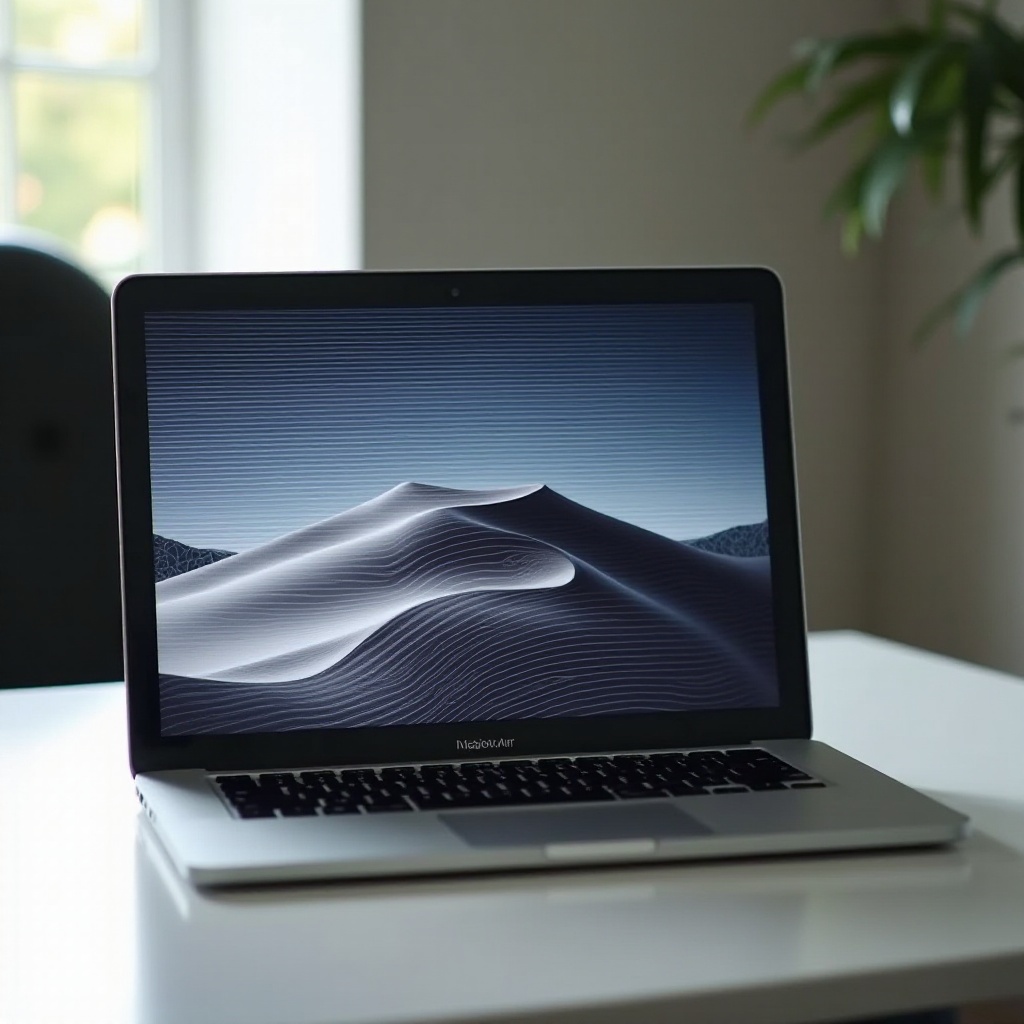
MacBook Air users frequently encounter an annoying issue: horizontal lines on the screen. This not only disrupts daily activities but also hints at potential software or hardware concerns. Tackling this problem quickly can prevent further complications and maintain your laptop’s smooth performance.
Understanding the Cause of Horizontal Lines
Various factors might lead to horizontal lines appearing on your MacBook Air’s screen. Software glitches could lead to display corruption, while more serious hardware malfunctions might suggest deeper issues. Accurate diagnosis is crucial for applying the right fix and prolonging your MacBook’s lifespan.
Initial Troubleshooting Steps
If horizontal lines are showing up on your screen, begin with simple troubleshooting actions:
-
Restart Your MacBook Air: This can clear minor system glitches. Press the power button and select ‘Restart’ from the menu.
-
Check for Software Updates: Running outdated software might lead to display problems. Go to ‘System Preferences’ > ‘Software Update’ and ensure your macOS is up-to-date. Updates may contain fixes for bugs causing the lines.
These straightforward steps often resolve minor issues. However, if the lines persist, more advanced software or hardware solutions might be necessary.
Software Solutions for Horizontal Lines
Should restarting and updating fail to fix the problem, deeper software troubleshooting might be necessary.
Resetting NVRAM/PRAM and SMC
Resetting the NVRAM/PRAM and the system management controller (SMC) could clear display issues:
- Reset NVRAM/PRAM: Power off your Mac, then turn it on while holding Option, Command, P, and R for about 20 seconds.
- Reset SMC: Shut down your Mac, press Shift, Control, and Option on the left side of the keyboard, then press the Power button and hold for 10 seconds.
Booting in Safe Mode
Safe Mode loads only essential macOS functions, allowing you to see if startup items cause the issue:
- Turn off your Mac, press the Power button, immediately hold the Shift key, and release it when the login screen appears.
If the lines vanish in Safe Mode, a third-party application could be the cause.
Re-installing macOS
As a last resort for software fixes, consider reinstalling macOS. This will overwrite problematic system files:
- Restart your Mac and immediately press Command and R to enter Recovery Mode. Select ‘Reinstall macOS’ and follow the on-screen instructions.
Software fixes can address many line-causing factors, but some issues may require a closer look at hardware components.
Diagnosing and Addressing Hardware Issues
If troubleshooting software doesn’t help, hardware issues might be to blame. Here are ways to diagnose hardware problems.
Running Apple Diagnostics
Apple Diagnostics helps identify hardware faults:
- Disconnect all external devices except keyboard and mouse. Restart your Mac and immediately hold the D key. Follow on-screen instructions after the diagnostics complete.
Inspecting and Securing Display Connections
Loose or damaged display cables might cause screen issues. While it’s possible to check connections yourself, a professional ensures a secure solution:
- Verify that your display connector is properly seated.
These hardware diagnostics could reveal issues warranting professional attention.

When to Seek Professional Help
Persistent horizontal lines might indicate the need for professional repair. Such issues could signal a failing display panel or logic board:
- Look for severe signs like deep screen flickering or odd color distortion, indicating immediate professional assessment is needed.
- Visit an Apple Store or an authorized service provider as they have the right tools and expertise for extensive repairs.
Promptly addressing these severe problems can prevent additional damage and extend your Mac’s useful life.
Preventative Measures for Future Display Health
Regular preventive care can reduce the recurrence of horizontal lines and support overall device durability:
- Routine Maintenance: Clean your screen and keyboard periodically, and ensure your system software stays updated.
- Protective Accessories: Consider using a screen protector to minimize physical damage and avoid smudges.
These strategies help safeguard your MacBook, reducing the risk of display issues reemerging over time.

Conclusion
Fixing horizontal lines on your MacBook Air ensures your device remains user-friendly and dependable. By following these outlined steps—from basic troubleshooting to prevention—you can successfully address and avert future screen problems.
Frequently Asked Questions
What are the main causes of horizontal lines on a MacBook Air?
Horizontal lines usually result from software glitches or hardware issues like a failing display or loose connections.
Can the horizontal lines damage my MacBook Air further?
While the lines themselves aren’t harmful, they may indicate underlying problems that could cause further damage if ignored.
How much does it typically cost to fix a display issue on a MacBook Air?
Repair costs can vary from around $200 for minor fixes up to $600 or more for major repairs like a screen replacement. A quote from a service center can provide a precise cost.