
Introduction
Are you encountering a peculiar circle on your Samsung TV screen? It can be quite a distraction, affecting your viewing enjoyment. Knowing the root causes and how to fix them is essential. This article will explore various troubleshooting methods, ranging from simple to advanced solutions, to help you resolve this issue and restore your TV’s clarity. Let’s dive in and tackle the circle problem together.
Understanding the Circle on Screen Issue
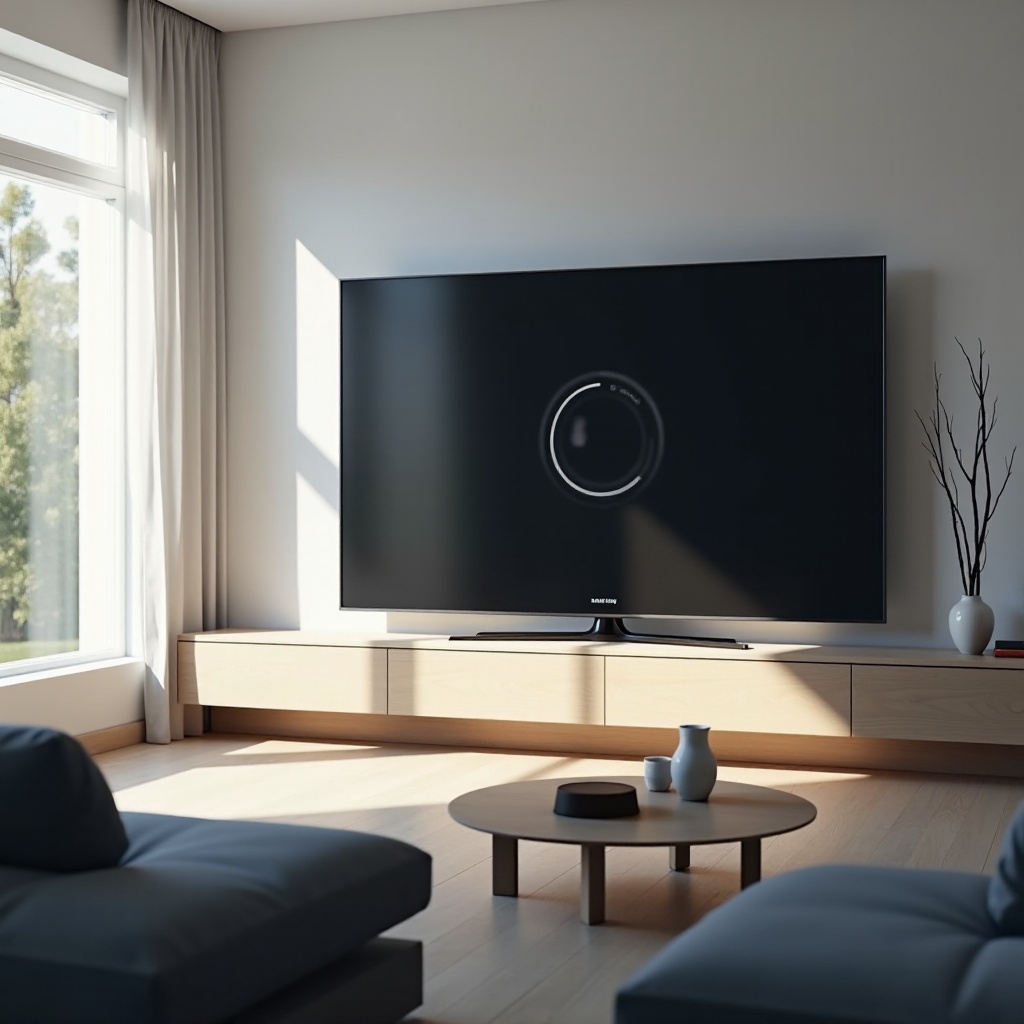
Having a clear grasp of what causes the circle on your Samsung TV screen is the first step in resolving it. This anomaly is often tied to software glitches or hardware malfunctions. By pinpointing whether the problem stems from the internal software or the hardware components, we can choose the appropriate course of action to rectify it.
Diagnosing the Problem
To effectively address the issue, you first need to diagnose it accurately. Here are the steps:
- Check for Recent Software Changes: Determine if recent updates or settings adjustments could be the culprit.
- Inspect Connected Devices: Disconnect and reconnect devices like media players to see if they are causing interference.
- Environmental Interference: Verify that no magnetic or electronic devices are near the TV, leading to display problems.
Once you’ve narrowed down the potential cause, you’ll be in a better position to tackle the issue using the steps outlined below.
Common Causes of Circles on Samsung TV Screens
When it comes to circles on screens, common causes include:
- Software Glitches: This can occur due to outdated firmware or temporary bugs in the system.
- Hardware Issues: Problems with internal components such as the display panel or connections can also lead to visual disruptions.
Addressing these underlying issues requires a targeted approach, starting with basic troubleshooting.
Basic Troubleshooting Steps
To solve the circle on screen issue, start with these techniques:
- Perform a Soft Reset: Unplug the TV for about 30 seconds, then plug it back in. This resolves many minor software glitches.
- Update Firmware: Go to the settings menu and check for software updates. Installing the latest version can fix known software bugs.
- Adjust Display Settings: Check and modify the picture settings in your TV’s menu for potential improvements.
These solutions often handle simple issues, but if the circle persists, delve into more advanced techniques.
Advanced Troubleshooting Techniques
When basic steps are not sufficient, try the following:
- Inspect Hardware Connections: Carefully remove the TV’s back panel to check for and fix any loose connections.
- Seek Professional Assistance: If internal components appear to be defective, consult with a Samsung specialist or service center for in-depth repairs.
Using these advanced strategies provides a comprehensive way to address lingering or complex issues that basic troubleshooting couldn’t resolve.
Preventative Measures for the Future
Once you have successfully addressed the circle on screen, consider these prevention tips to avoid future occurrences:
- Regular Maintenance: Clean your TV and its peripherals every six months to avoid dust-related issues.
- Timely Software Updates: Regularly check for official Samsung updates to keep your TV’s software functioning smoothly.
By following these practices, you’ll maintain your Samsung TV’s performance and experience fewer issues.
Conclusion
Though the circle issue on Samsung TVs can disrupt your experience, proper diagnosis and a systematic approach to solving it can restore your TV’s function. From basic to complex troubleshooting methods, each step ensures that you address both the root cause and potential future problems. Maintaining this approach helps enjoy an uninterrupted TV viewing experience free from visual distractions.
Frequently Asked Questions
What should I do if the circle on screen issue persists after troubleshooting?
If the issue remains unresolved, consider seeking assistance from a professional repair service or contacting Samsung support for specialized help.
Can firmware updates fix all visual issues on Samsung TVs?
Firmware updates can fix many common software issues, but they might not resolve hardware-related problems. Diagnose the issue to see if updates will suffice.
How often should I perform maintenance on my Samsung TV?
Perform maintenance, such as cleaning and checking for updates, every six months to ensure optimal performance and longevity.