
Introduction
Experiencing a ‘no signal’ issue with your Xbox One when attempting to connect to a TV via HDMI can put a damper on your gaming plans. This prevalent problem arises from various causes, ranging from simple connection mishaps to more complex hardware or software malfunctions. In this comprehensive guide, we’ll walk you through a series of troubleshooting steps aimed at diagnosing and resolving the ‘no signal’ issue. Whether adjustments to your HDMI settings, examining your hardware, or utilizing Xbox support resources are necessary, we’re here to assist you.
Understanding HDMI and Signal Issues
The HDMI (High-Definition Multimedia Interface) is the go-to connection for transmitting audio and video signals from your Xbox One to your TV. A ‘no signal’ message indicates an issue with your TV receiving input from the Xbox One, which can stem from a range of factors. Understanding potential causes is the first step in resolving the issue.
Loose connections, outdated Xbox One software, or incompatible TV settings may all result in signal problems. It’s crucial to systematically inspect each potential weak link in your setup before considering more advanced solutions. A correct configuration and sturdy physical connections are essential for avoiding and resolving signal complications.
Basic Troubleshooting Steps
Prior to tackling more technical solutions, it’s imperative to confirm the basics. These initial steps are frequently overlooked, yet they can swiftly rectify signal issues.
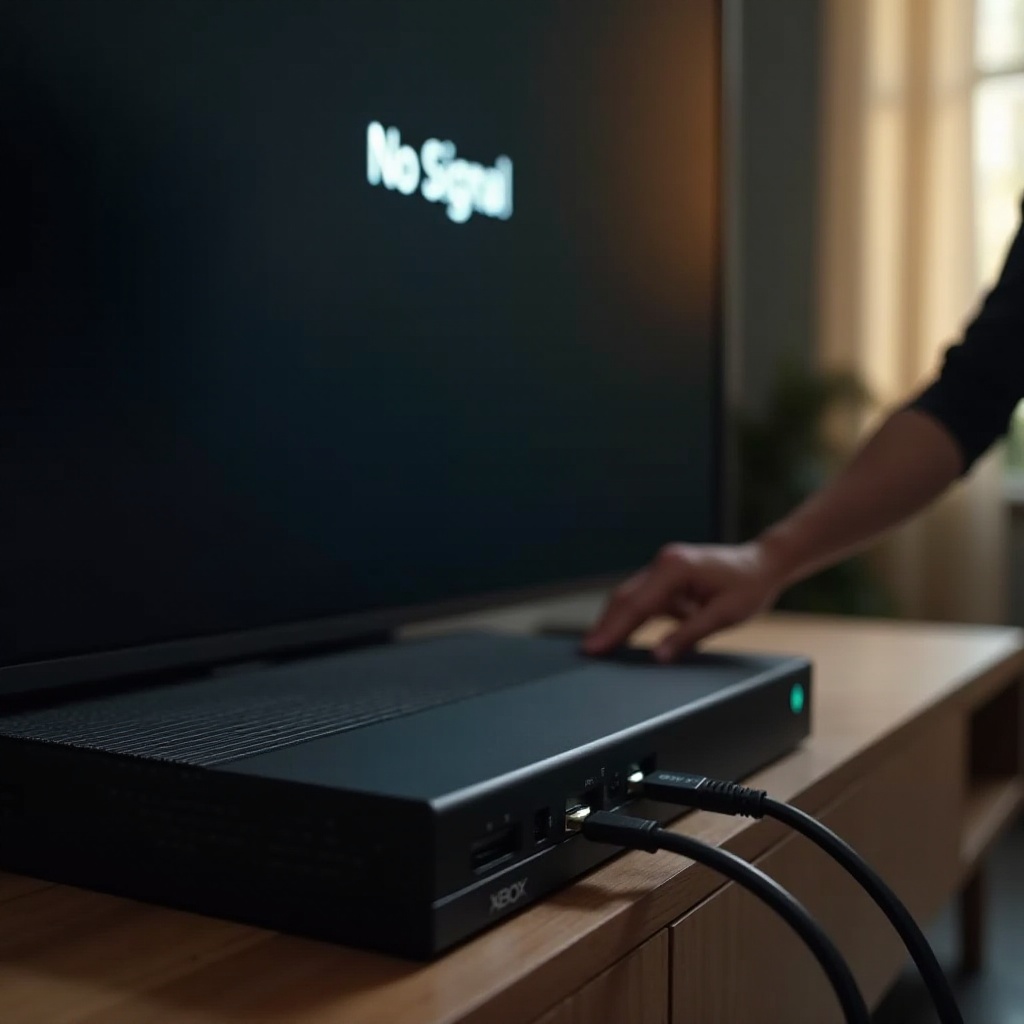
- Verify Cable Connections: Begin by ensuring both ends of the HDMI cable are firmly connected. Make sure the HDMI cable is properly inserted into the correct ports on both the Xbox One and your TV.
- Check TV Input Source: Use your TV remote to verify that the correct HDMI input source is selected. Many TVs have multiple HDMI ports, and selecting the wrong input can yield a ‘no signal’ error.
- Restart the Xbox One Console: Power cycling your Xbox can resolve many minor issues. To do this, press and hold the Xbox button on the console for about 10 seconds to turn it off. Once the console shuts down, wait for a minute before turning it back on.
Advanced Troubleshooting Techniques
If basic troubleshooting steps don’t resolve the issue, it’s time to try more advanced techniques. These steps require more effort but are effective in eliminating more serious problems.
- Test Different HDMI Cables and Ports: Even without visible wear, cables can sometimes be faulty. Try using a different HDMI cable to see if this resolves the issue. Additionally, test alternate HDMI ports on your TV to rule out a defective port.
- Reset Xbox One Display Settings: Occasionally, incorrect display settings can lead to signal issues. Reset your Xbox’s display settings by turning off the console and then turning it on while holding down both the Power and Eject buttons until you hear the startup tone twice. This will reset the console to low-resolution mode.
- Update Xbox System Software: Keeping your Xbox One software up to date is crucial for optimal performance. To update, connect your Xbox to the internet, navigate to ‘Settings,’ select ‘System,’ and then choose ‘Updates & downloads’ to keep your console updated with the latest software.
Identifying and Resolving Hardware Issues
Sometimes, the ‘no signal’ issue can arise from hardware-related problems. Identifying potential hardware failures can help determine if repairs or replacements are necessary.
- Inspect HDMI Cable for Physical Damage: Examine the HDMI cable for visible signs of damage, such as fraying or bent pins. Damaged cables should be promptly replaced to prevent signal issues.
- Assess Xbox One Hardware Condition: Inspect the condition of your Xbox One’s HDMI port for any dust or debris, which could obstruct the connection. Maintaining clean and functional console ports is critical to sustaining a stable HDMI connection.
Utilizing Additional Tools and Resources
When basic checks and adjustments aren’t adequate, employing additional tools and resources can make a significant difference. These options can offer both temporary fixes and long-term solutions.
- Use an HDMI Splitter or Converter: Occasionally, an HDMI signal might not be compatible with your TV due to format discrepancies. An HDMI splitter or converter can address these compatibility issues and ensure proper signal transmission.
- Consult Xbox Support and Online Forums: Xbox’s official support can provide customized solutions, especially for persistent issues. Additionally, online forums, such as Reddit or Xbox user communities, offer peer advice and shared experiences to help troubleshoot effectively.
Conclusion
Addressing Xbox One no signal to TV HDMI issues necessitates a systematic approach to identify and resolve underlying problems. Initiate with basic checks, progress to advanced troubleshooting, and don’t hesitate to utilize available resources. Persistence is key, and with the right steps, you’ll be immersed in your gaming experience once more.
Frequently Asked Questions
Why does my Xbox One show no signal on the TV?
Your Xbox One may not send a signal to your TV due to loose or faulty HDMI connections, incorrect input settings on your TV, or hardware issues.
Can a faulty HDMI cable cause signal issues with Xbox One?
Yes, a damaged HDMI cable is a common cause of signal issues. Testing with a different cable can often resolve the problem.
How can I update my Xbox One software if the HDMI signal is not working?
You can update your Xbox console by connecting it to the internet, ensuring your display settings are functional, and accessing the system updates through the ‘Settings’ menu.