
Introduction
A non-responsive phone display can be incredibly frustrating, especially when the device is powered on, and you need it the most. Understanding the root causes and finding effective fixes can help you restore functionality without the need for immediate professional help. This article provides a comprehensive guide on troubleshooting steps and preventive measures to tackle this common issue effectively.
Understanding Phone Display Issues
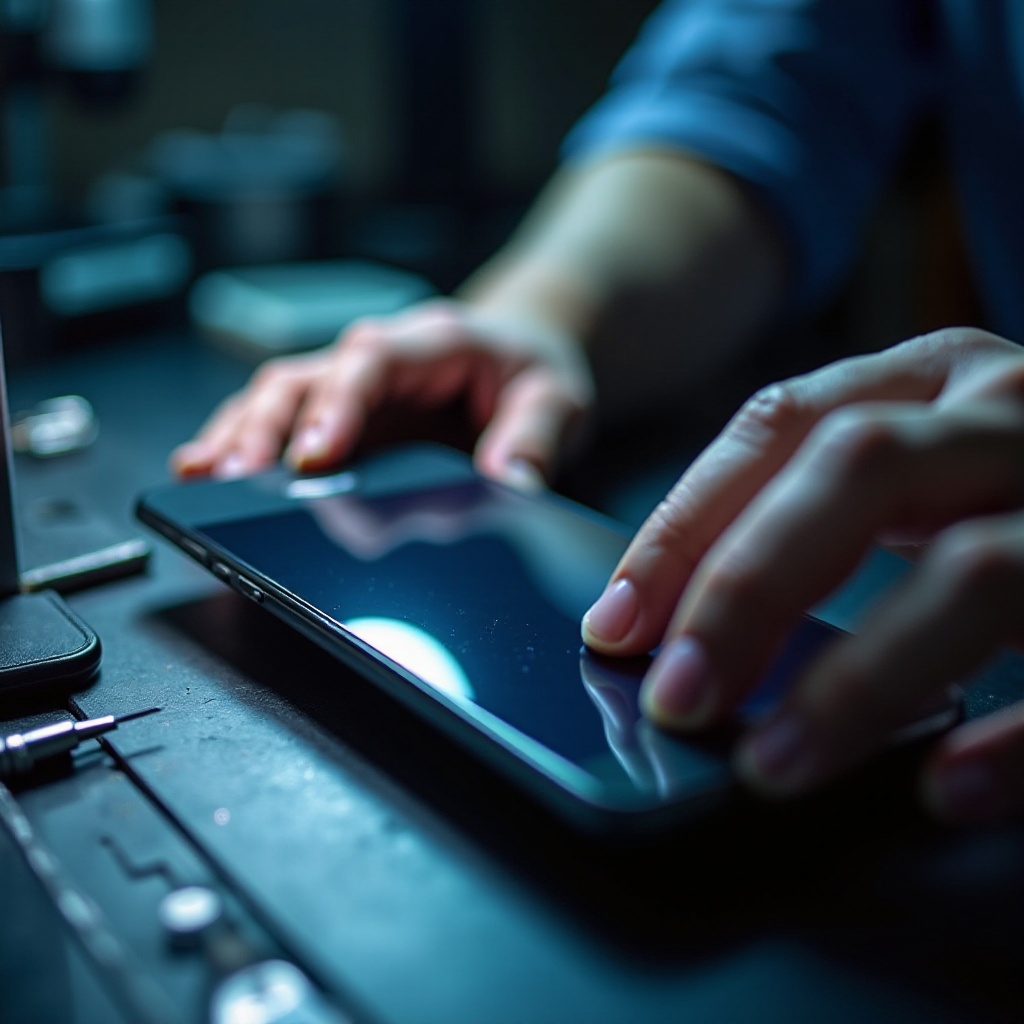
Several factors can cause a phone display to become unresponsive while the device remains on, and identifying them is key to finding a solution. Software glitches and physical damage are typical culprits. Misbehaving apps, outdated software, or internal component failure often lead to these issues.
-
Common Causes of Display Problems: Software glitches and physical damage are typical culprits. Misbehaving apps, outdated software, or internal component failure often lead to these issues.
-
Differentiating Between Hardware and Software Issues: Knowing whether it’s a hardware or software problem helps zero in on the right solution. Generally, software issues are more common and can often be resolved through troubleshooting steps. Hardware issues might require more intensive measures such as repairs or part replacements.
Understanding these distinctions allows you to take the correct course of action, enabling you to address the problem effectively. With this foundation, we can proceed to the initial troubleshooting steps.
Initial Troubleshooting Steps
Beginning with basic checks helps eliminate simple causes. Start by performing some easy checks to see if your display can be restored:
-
Ensuring the Phone is Charged: Sometimes, a phone appears on but lacks the necessary charge to power up the screen. Connect your phone to a charger and see if the display turns on after a few minutes.
-
Performing a Soft Reset: A soft reset can resolve many temporary software issues. Hold down the power button until you have the option to reboot the device.
-
Removing and Replacing Screen Protectors: Sometimes screen protectors can interfere with the touch sensitivity of the display. Remove the protector, clean the screen, and test the display again.
If these basic solutions don’t resolve the issue, it may be a deeper software problem, requiring more advanced techniques.
Advanced Software Solutions
If the problem persists, exploring software-related solutions is the next step. For software-related display problems, here are more advanced techniques:
-
Booting in Safe Mode: Starting your phone in Safe Mode can help identify and remove problematic apps. When in Safe Mode, third-party applications are disabled, allowing you to evaluate whether those apps are causing the display issue.
-
Clearing Cache Partition: Cached data can sometimes interfere with phone functionalities. Access recovery mode and select the option to clear the cache partition.
-
Performing a Factory Reset: As a last resort, perform a factory reset. This will erase all data, so backup important information first. This step eliminates software bugs or settings that might cause display problems.
With software issues addressed, if your screen is still unresponsive, it’s time to focus on potential hardware concerns.
Diagnosing Hardware Concerns
For cases where software fixes don’t work, the cause might be hardware-related. Consider potential hardware issues if your display remains unresponsive:
-
Checking for Screen Damage: Physical damage, such as cracks or water exposure, can disrupt screen functionality. Inspect the screen under good lighting for any visible damage.
-
Inspecting Internal Connections: Loose components inside the phone can also be problematic. If you’re comfortable, carefully open the phone to examine connections—though this may void warranties.
-
Professional Repair or Screen Replacement: If you suspect a hardware problem, professional technicians can diagnose and fix internal issues. They may recommend a screen replacement or other repairs.
After addressing possible hardware concerns, it’s also vital to consider steps that may prevent similar issues in the future.
Preventive Measures for Future Issues
To avoid future disruptions, proactive measures can help maintain display health over the long term. Consider the following maintenance tips:
-
Regular Software Updates: Keep your phone’s software up-to-date. Manufacturers often release updates to patch bugs that can affect display performance.
-
Using Quality Screen Protectors: Invest in durable screen protectors that do not impede touch sensitivity. They offer a layer of protection without sacrificing performance.
These preventive strategies are an investment in your device’s longevity and consistent performance.
Conclusion
A phone display that’s not working but powered on can often be fixed by understanding the root causes and applying the right troubleshooting steps. From checking charge levels to seeking professional help, each step is vital in restoring your phone’s functionality. Ensuring preventive measures helps secure better performance over time. If problems persist after following these steps, professional help should be sought to achieve a thorough resolution.
Frequently Asked Questions
What should I try first if my phone display is not working?
First, ensure your phone is charged and perform a soft reset. If the display still doesn’t work, consider removing any screen protector and rebooting the device in Safe Mode.
Can a virus cause my phone display to stop working?
While it’s rare, some malicious software can affect device functionality, including display operation. Running a virus scan and updating your phone’s security settings can help prevent this.
How can I prevent future display issues with my phone?
Regularly update the software, use quality screen protectors, and handle your phone carefully to avoid physical damage. These steps help maintain display health and overall device performance.